
Copy your connection URL
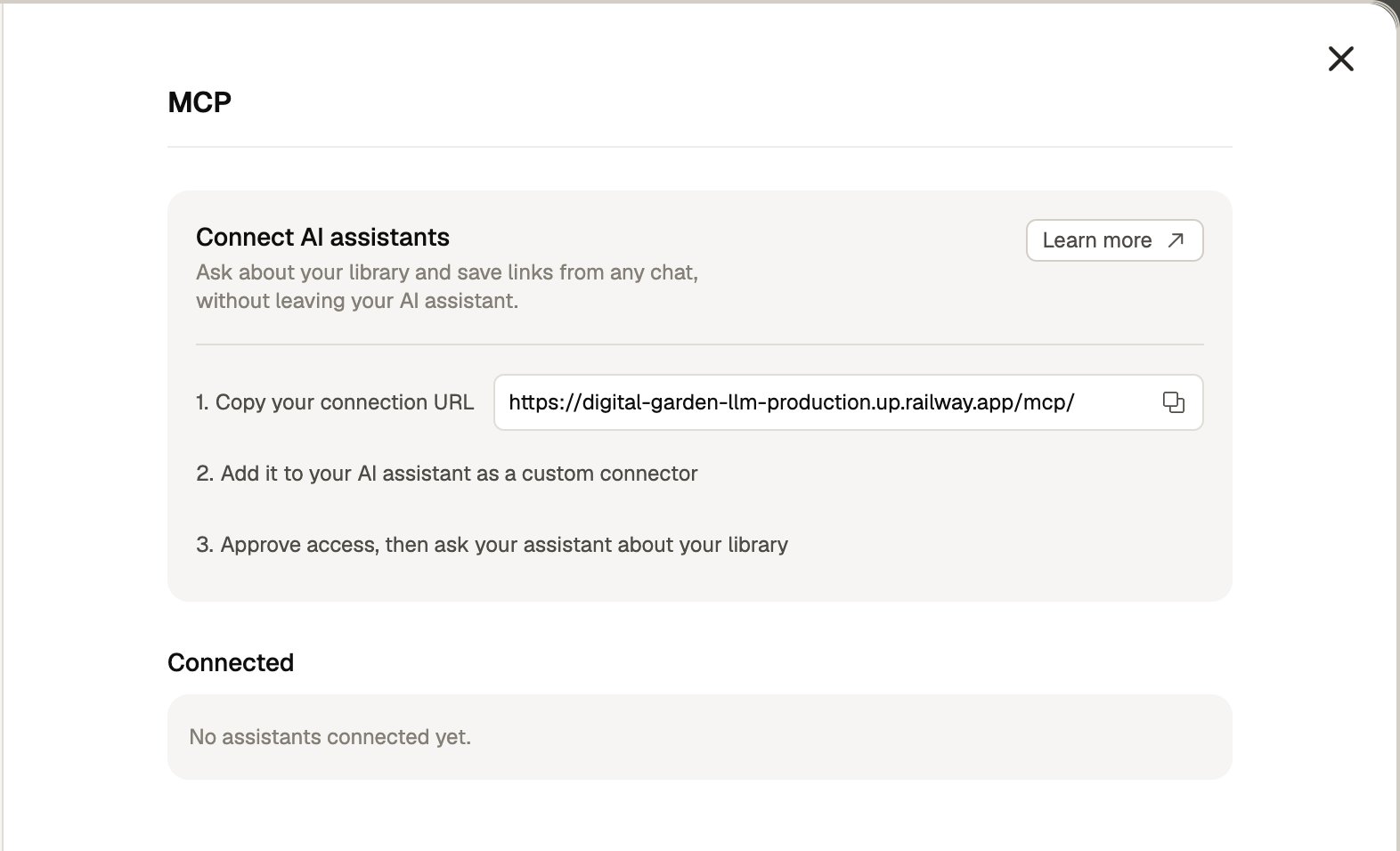
The MCP tab in Settings
1
Open Settings
Select your profile in the sidebar, then Settings.
2
Open MCP
Select the MCP tab. The card Connect AI assistants shows three steps.
3
Copy the URL
Next to Copy your connection URL, select the copy button. The URL is
https://ai.gistr.so/mcp.Add Gistr to your assistant
- Claude
- ChatGPT
- Claude Code, Cursor, VS Code
1
Add a custom connector
In Claude, open Settings, then Connectors, then Add custom connector.
2
Paste the URL
Paste
https://ai.gistr.so/mcp and select Connect.Sign in and approve
When the assistant connects, a Gistr page opens. It shows “app would like access to your Gistr account” and lists what the app can do:- Your name, email, and profile picture
- Read your threads, collections, and inbox
- Turn links into threads (uses credits)
- Add notes and organize your collections
- Ongoing access to your account, even when you’re not using the app
See and remove connected assistants
The Connected list in Settings, then MCP, shows each assistant, when you connected it and when it was last used.1
Find the assistant
Open Settings, then MCP, and find the app under Connected.
2
Disconnect
Select Disconnect, then confirm. The app loses access to your library until you connect it again.