
Memory is a paid feature. On the Free plan the Memory tab shows Upgrade to activate memory. See Plans and passes for the plans that include it.
Open your memory
1
Open Settings
Click your profile at the bottom of the sidebar, then Settings.
2
Go to Memory
Click the Memory tab. You see the Enable memory switch and your Memory notes, grouped by topic.
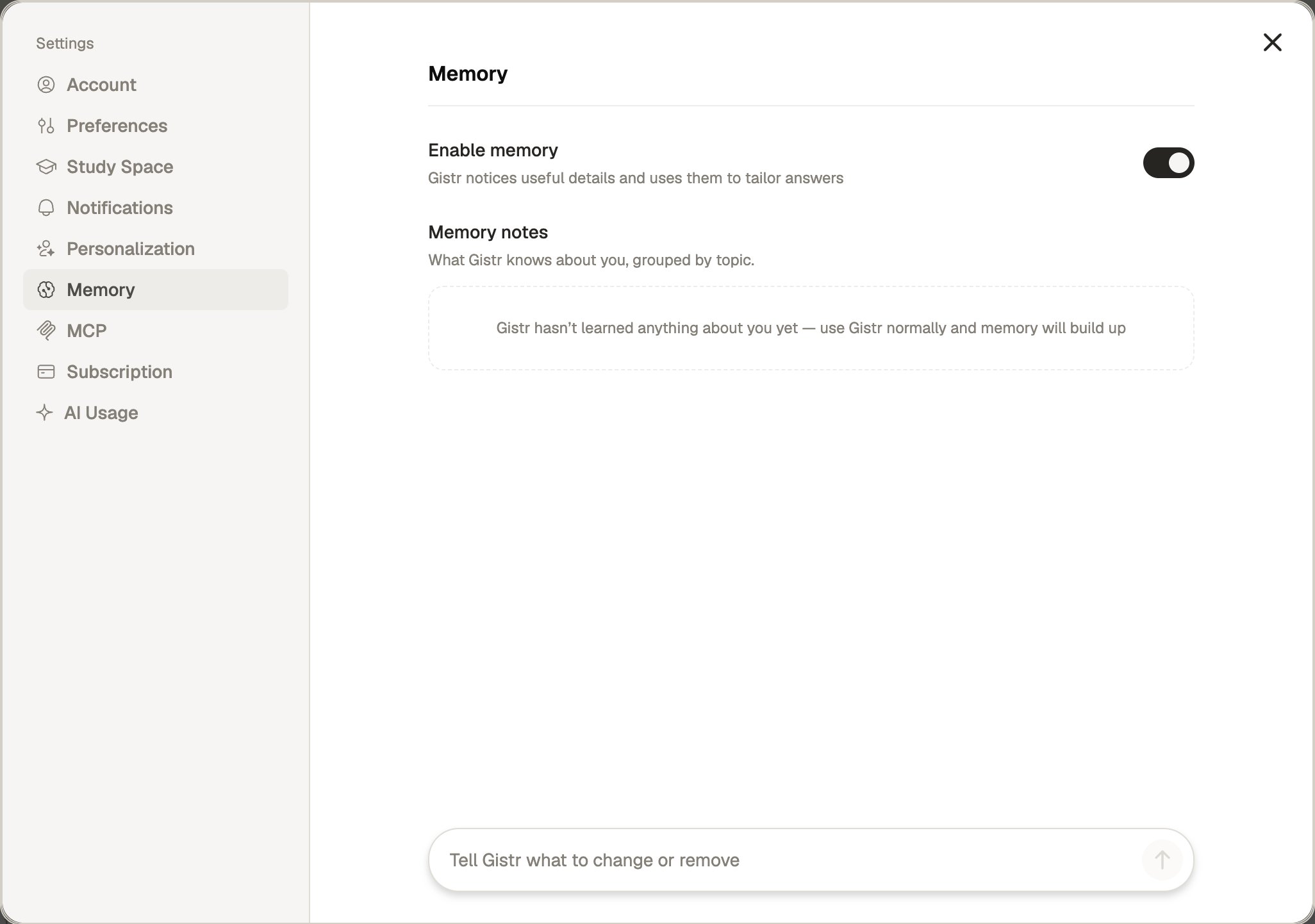
The Memory tab in Settings
Turn memory on or off
The Enable memory switch controls memory for your whole account. When it is on, Gistr notices useful details and uses them to tailor answers. When you turn it off, Gistr stops adding new memories on its own. The memories it already saved stay, and you can still view and forget them.What feeds memory
Gistr builds memory from what you do in Gistr: your chats, highlights, notes, voice notes, sources, artifacts, assessments and files, plus anything you add yourself. Where a memory has no title of its own, Gistr groups it by origin, with labels such as From chat, From highlights, From notes or Added by you. Memories are grouped into topics such as Learning Goal, Preference, Project, Topic, Skill, Work and Language. Anything without a topic sits under Uncategorised.Add or change a memory
Type in the box that reads Tell Gistr what to change or remove, then press Enter. You can write a new fact (“I’m preparing for the NEET exam in May”) or a change (“I no longer work on the genomics project”). Gistr adds or updates the right memories and tells you how many it changed. A note can be up to 2,000 characters. If your note has nothing Gistr can keep, it says so. Try a plain fact about yourself.Forget a memory
Hover a memory and click the trash icon (Forget memory). Gistr asks Forget this memory? Click Forget to delete it, or Keep to leave it.To confirm: the server can erase all memory at once, but the web app has no button for it today. Until it does, forget memories one at a time.