
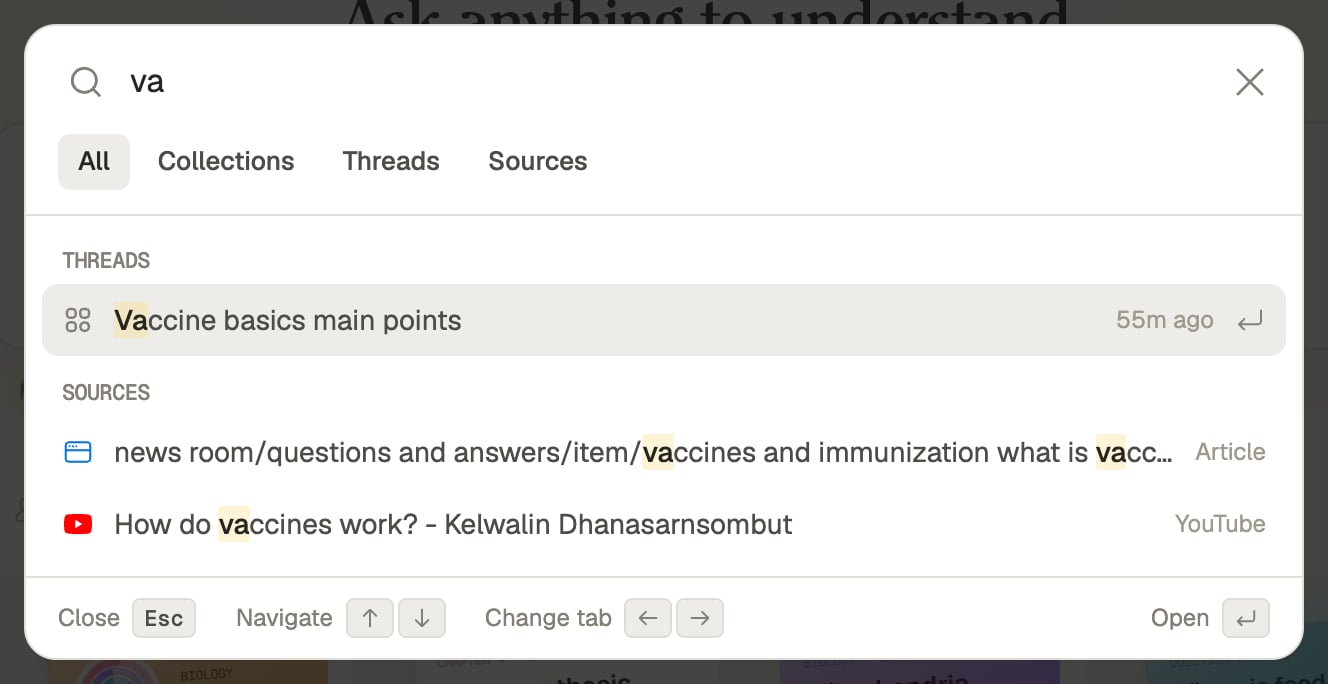
Search results grouped by type
What search finds
The search box reads Search collections, threads and sources. It matches:- collection names
- thread titles
- source titles, plus the site name and web address of a source
Search matches names and titles. It does not look inside your pages, chats or the text of a source. To find something inside a source, open the thread and ask Gistr AI. See Ask Gistr AI about your sources.
Filter by type
Use the tabs at the top to narrow the results: All, Collections, Threads or Sources. All shows the top few results of each type. A single tab shows a longer list. Before you type, search shows two sections:- Recent: the items you opened most recently.
- Create: shortcuts to New collection, New thread and New source.
Use the keyboard
If nothing matches, search shows No matches. Try fewer words or part of a title.