
1
Open Settings
Click your profile at the bottom of the sidebar, then Settings.
2
Go to Personalization
Click the Personalization tab and fill in the fields you want.
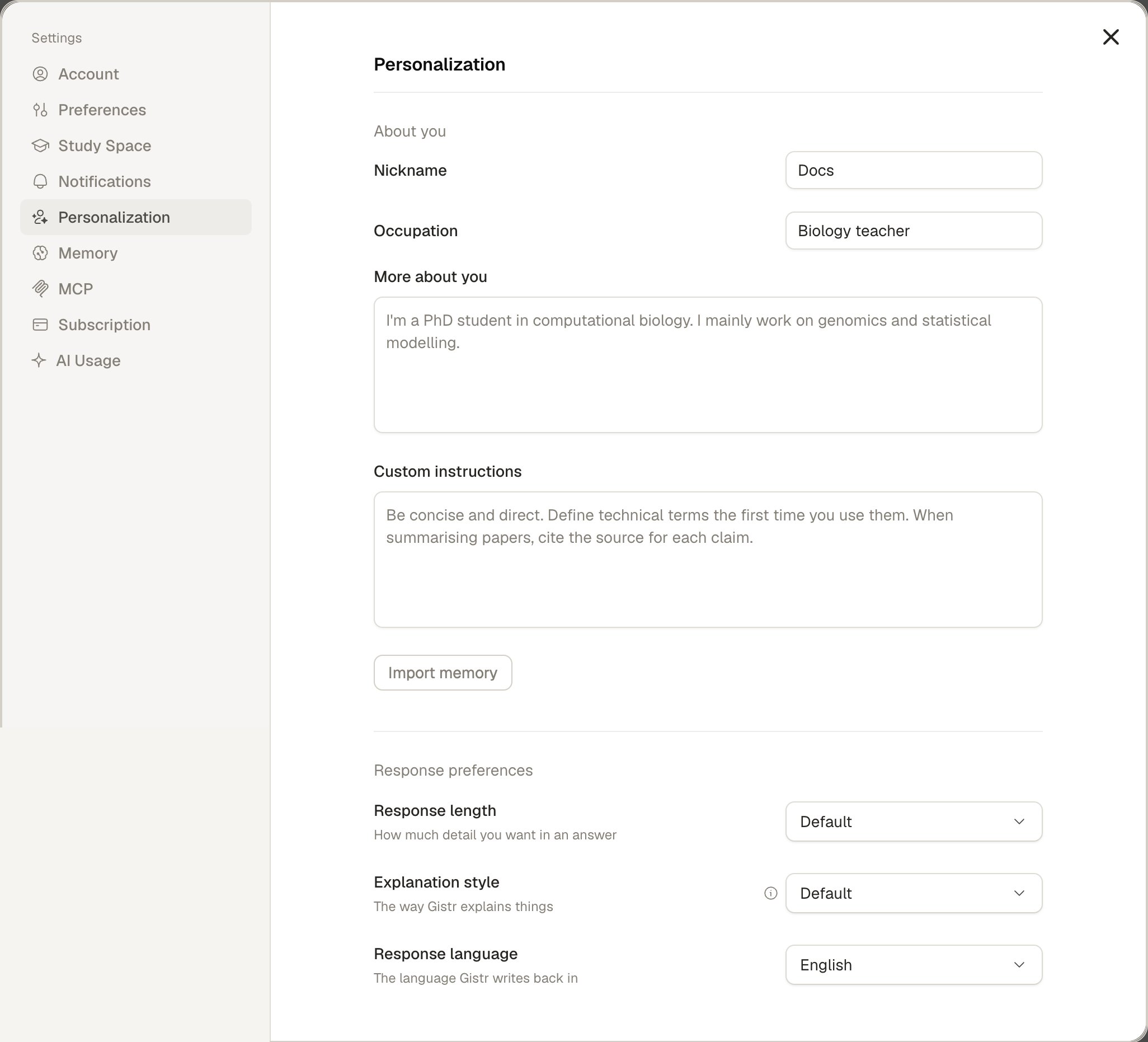
The Personalization tab in Settings
About you
Good custom instructions are short and specific. For example: “Be concise and direct. Define technical terms the first time you use them. When summarising papers, cite the source for each claim.”
To fill these fields from another assistant you have used, click Import memory. See Bring your memory from another assistant.
Response preferences
Response length sets how much detail you want in an answer: Short, Default or Long. Explanation style sets the way Gistr explains things:- Default
- Worked examples
- First principles
- Analogy
- Socratic questioning (Gistr guides you with questions)
- Structured breakdown