
Read the label under an answer
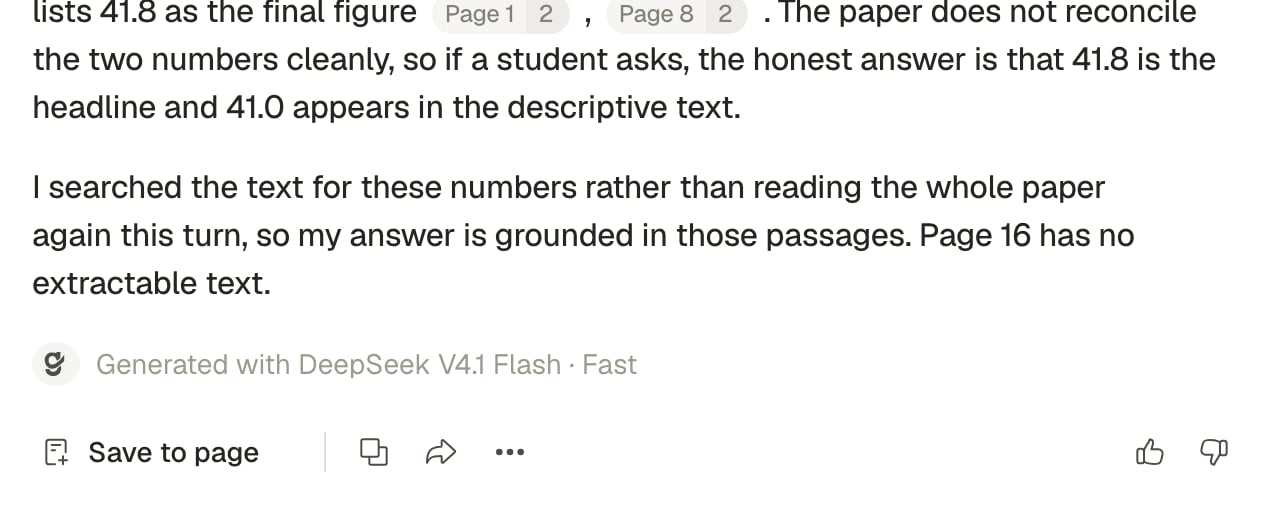
The Generated with label under an answer
- The model name. The model that wrote this answer.
- The effort. Fast, Standard or Max, the effort the answer ran at. See Fast, Standard or Max.
- Older answers, saved before Gistr recorded effort, show the model name only.
- An answer that failed, or that you stopped before any text came back, has no label.
- When you add an AI answer to a page, the note shows the answer and its citations only. The “Generated with” line stays on the Chat page.
What “Default” means
If you never pick a model, Gistr uses the Default. The Default is not one fixed model. Gistr picks the model for you based on the effort you choose and the region you are in. On some plans and regions, the Default at Max runs the same as Standard, and the label then reads Standard. The label always names the real model that answered, not “Default”. The model roster lists what the Default runs.Older guides call the Default “Gistr Fast” and “Gistr Thinking”. These names mean the Default at Fast effort and at Standard effort. The app no longer shows them.
Check the model before you send
1
Open the picker
Select the effort button at the bottom of the composer.
2
Look at the Models row
Under the effort list, the Models row shows the name of the model your next message will use.
3
Change it if you want
Select Models to see every model, grouped by tier. Pick one, or pick the row with the Default badge to go back.