
Export notes
1
Open Download
Open the thread, click Share, then the Download tab.
2
Pick what and how
Choose Notes, then pick PDF, Image or Markdown. Markdown downloads a .md file straight away. Image downloads a .zip of PNG pages.
3
Adjust and download
For PDF and image, a preview opens. To change the Layout (size, orientation and font size) or Options such as Show document title, open Download settings. Click Download PDF · A4 (the label shows your format and size). If the preview takes a long time to build, Gistr offers Download now, skip the preview.
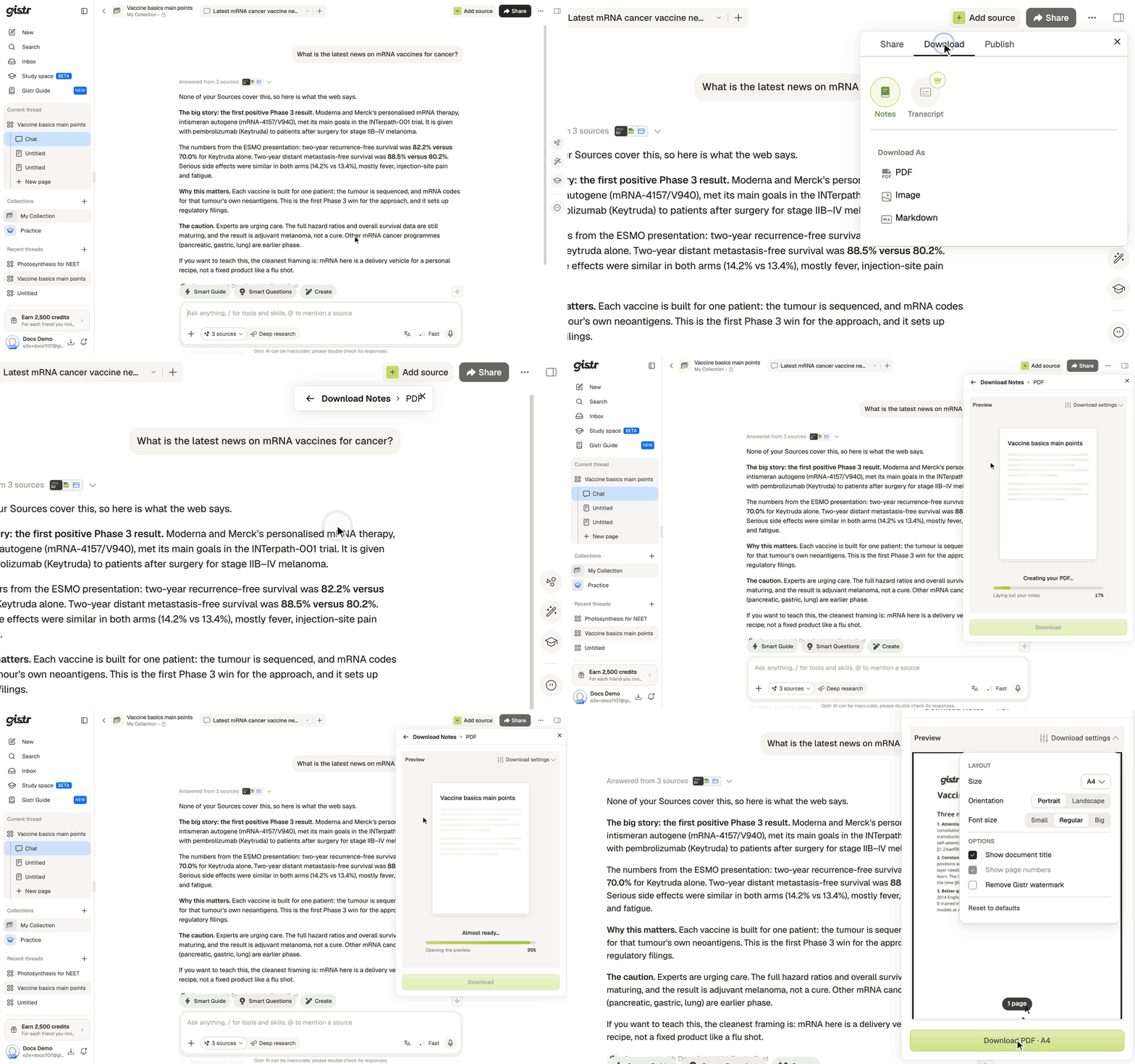
Download your notes as a PDF
Export a transcript
For a video or podcast, choose Transcript in the Download tab, or open the source’s options and click Export transcript. You can choose Include timestamps and pick PDF, image or Markdown. Transcript export is a paid feature. On the Free plan, Gistr shows an Upgrade label and opens the upgrade screen. See Plans and passes.Export PDF annotations
Open a PDF source, open its options and click Export annotations. Gistr downloads the PDF with your annotations on it. See PDFs, documents and web pages.Download a chat answer
Open the More options menu on an answer and pick Download PDF, Download Image or Download Markdown.Download an artifact
Click Download on the artifact, or the arrow next to it (Download options), and pick a format. A format shows only when its file is ready.
See Make a presentation, document, carousel or infographic and Audio overviews and images.