Type your question in the chat of a thread. Gistr AI reads the sources you have selected in that thread and answers from them. You can narrow the answer to one source, a few sources, a single passage or a clip.

Choose which sources the AI reads

The source button sits in the chat toolbar. It reads Select sources when nothing is selected, and 1 source or 3 sources when some are.
1

Open the source list

Click the source button. The All sources list opens above the chat box.
2

Pick the sources

Click the tick next to a source to leave it out, and click again to put it back. Use Select All or Unselect All to change every source at once. Click a source’s name to make it the only source the AI reads.
3

Ask your question

Type in the chat box and send. The answer uses only the sources you picked.
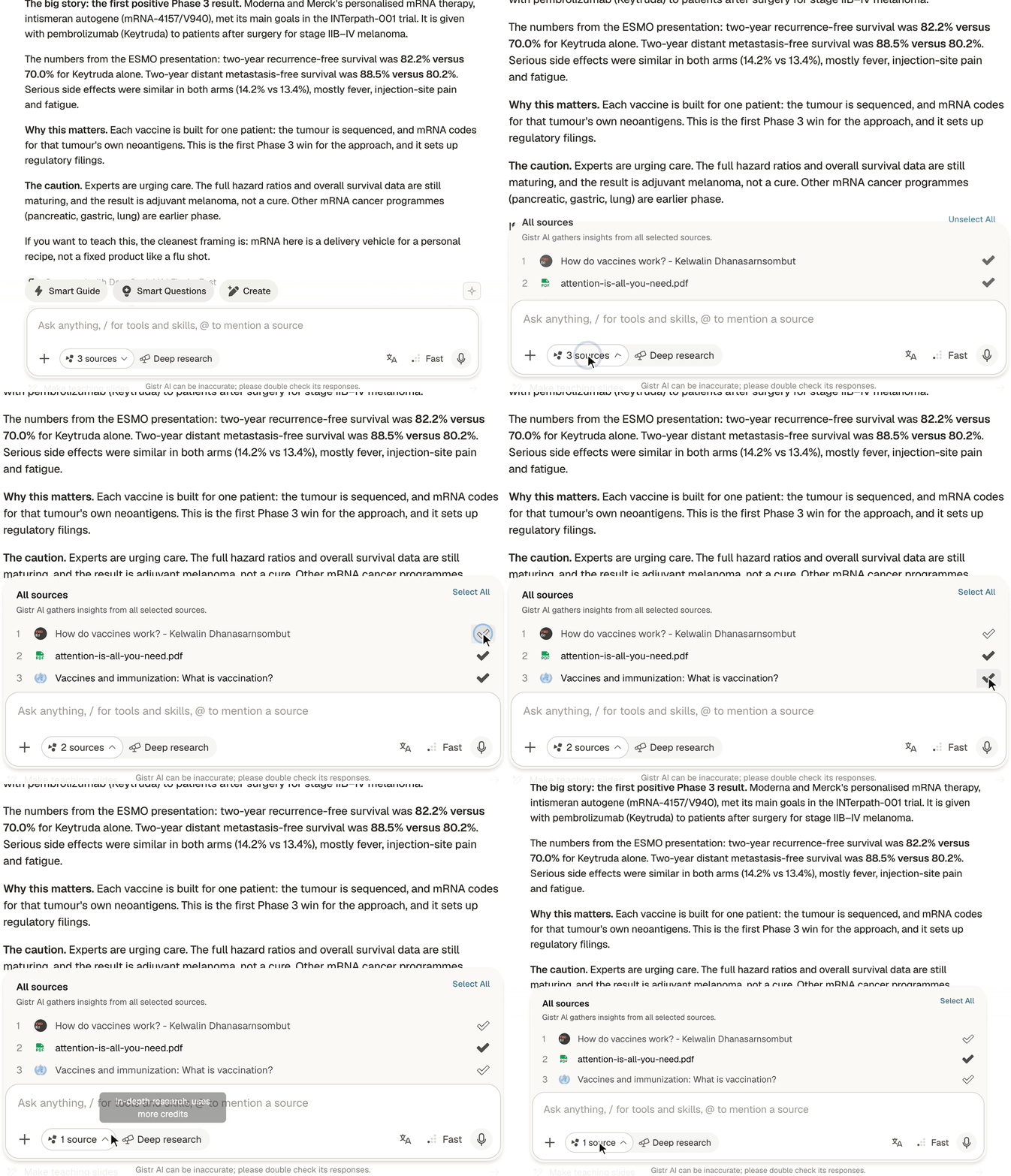
Opening the All sources list above the chat box and unticking sources until only one PDF is selected

Untick sources in the All sources list

You cannot select a source that is still processing. Hover over it to see why: Processing source…, Unable to process source, or No transcript available, AI features unavailable.

Mention a source with @

Type @ in the chat box to open the Sources menu, then pick a source. A mentioned source narrows that question to the sources you mentioned. The menu also has Add sources if the source you need is not in the thread yet.

Ask about a passage

In a PDF, document or web page source, select some text and click Ask AI. The chat opens and the passage appears as a quote chip above the chat box. A chip from a PDF shows its page, for example p. 12. Hover over the chip to read the whole passage, or click Remove quoted text to drop it. You can also select text inside an answer. The toolbar shows Follow-up (ask about this selection), Add to page, Highlight and Copy text.

Ask about a clip

A clip in your notes has its own Ask AI button. It opens a small chat inside the note, with ready-made prompts such as What are the key points discussed? and Can you explain like I’m new to this.

Follow-up suggestions

Under the latest answer, Gistr shows up to five suggested next steps. They mix questions about your sources with an option to create something from them. Click one to ask it in the same chat.

Set the answer language

Click the translate icon (Output language) in the chat toolbar and pick a language. This is one setting for your whole account, not for one chat. You can also change it in Settings under Personalization, as Response language. If you write your question in another language, or name a language in the question, Gistr AI answers in that language. See Use Gistr in your language for more.

Try it

Open a thread with two or more sources, click the source button, untick all but one source, and ask “What is the main point of this source?”