
Read a web page your way
A web page opens as clean, readable text. Click the palette icon in the bottom bar to open Preview style and pick one of six looks: Classic, Modern, Warm, Serif, Natural or Structured. Each style follows your light or dark theme. On a phone, the source opens full screen in Reader view.Mark up text
Select text in a PDF, document or web page. A menu appears where you can:- Pick a markup style: Highlight, Underline, Strikethrough or Squiggly.
- Click Ask AI to quote the passage in the chat. See Ask Gistr AI about your sources.
- Under Paste to note as, add the passage to your notes as Plain text or as a Reference that links back to the source.
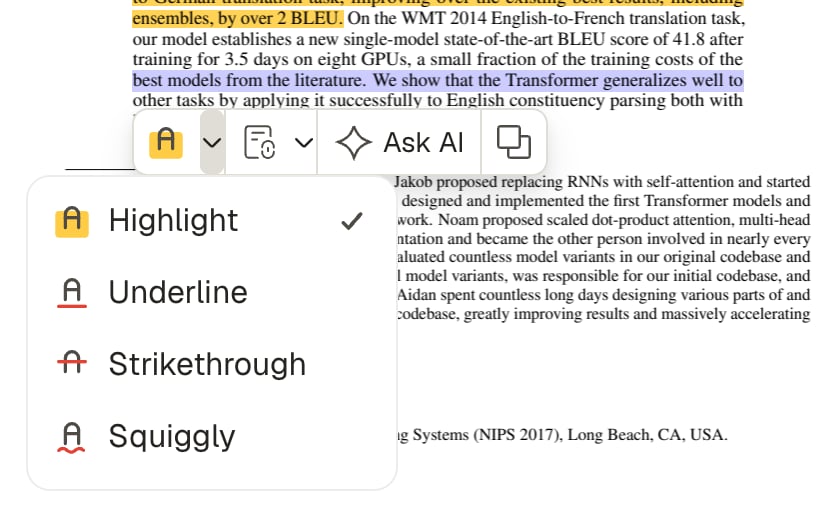
The menu that opens when you select text in a PDF
PDF and document tools
PDFs and documents such as DOCX and EPUB files have a toolbar with more tools:
Open Source options for three more settings:
- Auto highlight: applies your chosen markup style as soon as you select text, so you do not need to click it each time. This is different from Auto-Highlight on videos and does not use AI.
- Highlights → Notes: copies each new highlight into your notes.
- Export annotations: downloads the PDF with your markup.
To confirm: the export format. The code downloads the PDF through the viewer’s own export, which most likely keeps the annotations in the file. No other format was found, and web pages have no annotation export.
Capture a region with Snap
1
Choose Snap
Click Snap in the PDF toolbar.
2
Drag a box
Drag a rectangle over the part you want, such as a chart, formula or scanned paragraph.
3
Choose what to do with it
Under Paste to note as, click Add image to note to paste the capture as an image, or Convert to text to read the text out of it. You can add the text to your note or keep asking about it in chat.