
An artifact needs at least one source in the thread. If the thread has none, Gistr shows Add a source first and opens your sources.
Make an artifact
1
Open Create
Open a thread that has a source. Above the message box, select Create. You can also open Artifacts in the thread and pick a kind under Create an artifact.
2
Pick a kind
Select Presentation, Document, Social carousel or Infographic. Gistr starts at once with its default settings.
3
Or customise it first
Select the pencil on a card (Customize Presentation, for example) to open its settings. Change what you need, then select Generate.
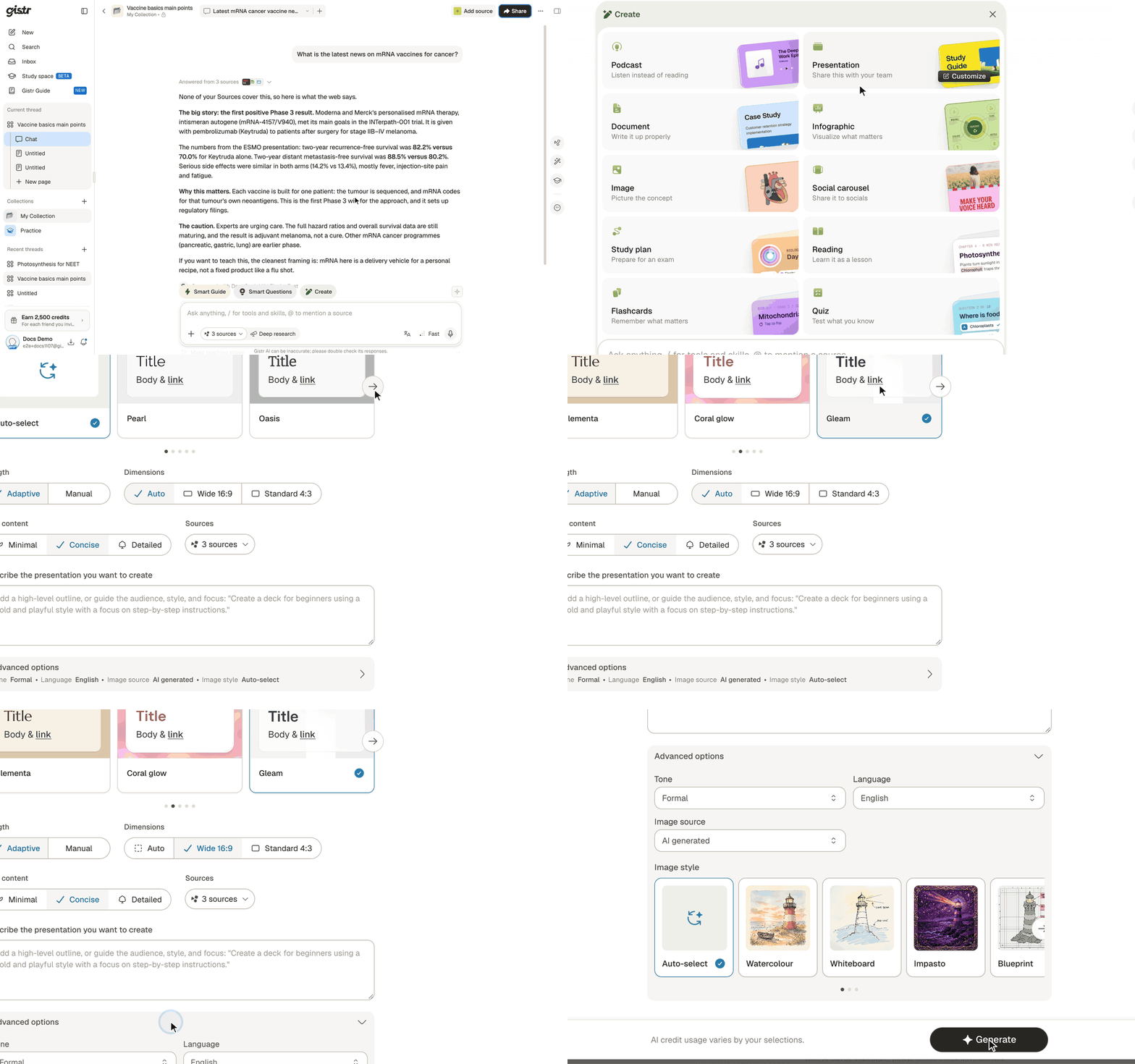
Customise a presentation before you generate it
/ and pick from Create.
Settings for each kind
Theme sets the colours and fonts. Pick one of the twelve themes, such as Pearl, Gleam or Terracotta, or keep Auto-select and let Gistr choose.
Advanced options holds Tone (Casual, Friendly or Formal), Language and Image source. Image source can be All web images, Free to use (web), Free for commercial use (web), AI generated, No images or Theme accent. When you pick AI generated, you can also pick an Image style, such as Watercolor, Whiteboard or Blueprint.
For an infographic, Language sits next to Dimensions, not under advanced options.
Tell Gistr who it is for
The box under the settings (for example Describe the presentation you want to create) takes an outline or a short brief. One line about your audience changes the result a lot:Create a deck for beginners with a focus on step-by-step instructions.
Change an artifact
Select Edit on the artifact. Gistr putsChange "<title>": in the message box, so you only type what to change, for example “make the title shorter”. Each change saves a new version. Use Choose a version in the artifact viewer to go back to an earlier one.
All artifacts in a thread are listed under Artifacts. To remove one, open Artifact options and select Delete artifact.
Download and share
Download as Image gives you a ZIP file with one PNG for each page or slide. Share copies a link to the artifact. For all export options in Gistr, see Export your work.