
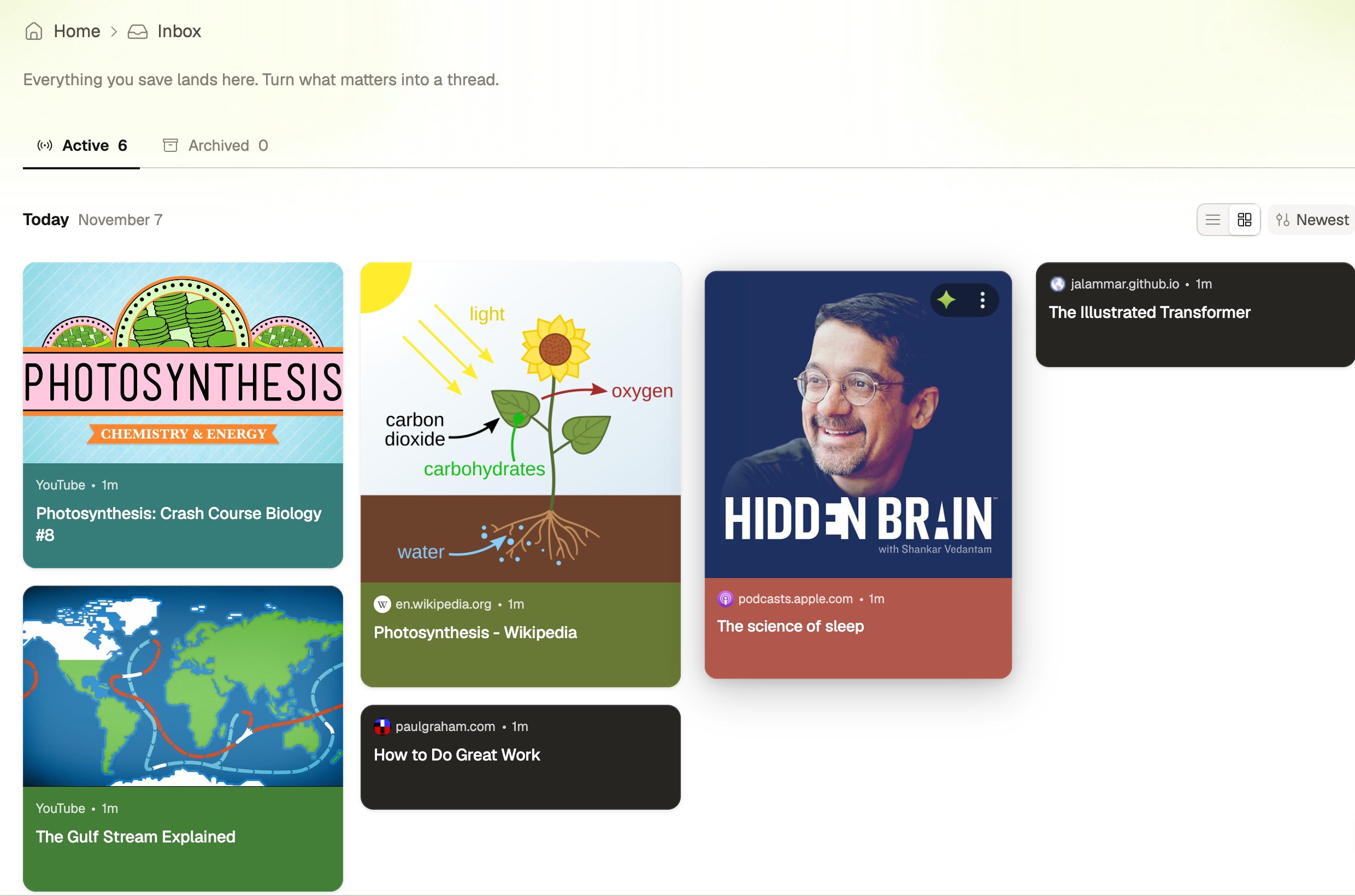
The Inbox in grid view
How things get into the Inbox
If you save the same link twice, the Inbox keeps one item. Gistr takes up to 50 new captures a day.
Turn on Auto-capture
Auto-capture is off until you turn it on. In the extension, open Settings and turn on Auto-capture. Gistr explains what it saves under Before you turn this on; confirm, then pick the places it may save from:
Each choice starts off. Turn on only the ones you want, and change them at any time.
Active and Archived
The Inbox has two lists. Active holds what you have not dealt with yet. Archived holds what you are done with. Use Move to Archive or Move to Active on an item to move it between them. When you start a thread from an item or move it to a collection or thread, Gistr archives it for you. You can switch between List view and Grid view, and filter by type.Preview an item
Select an item to open a preview. For articles, switch between Site View, which shows the page itself, and Reader, a clean reading view. If a site cannot be shown, select Open in new tab. The preview also has Notes, where you can add or edit a note, and the item’s details under Meta data.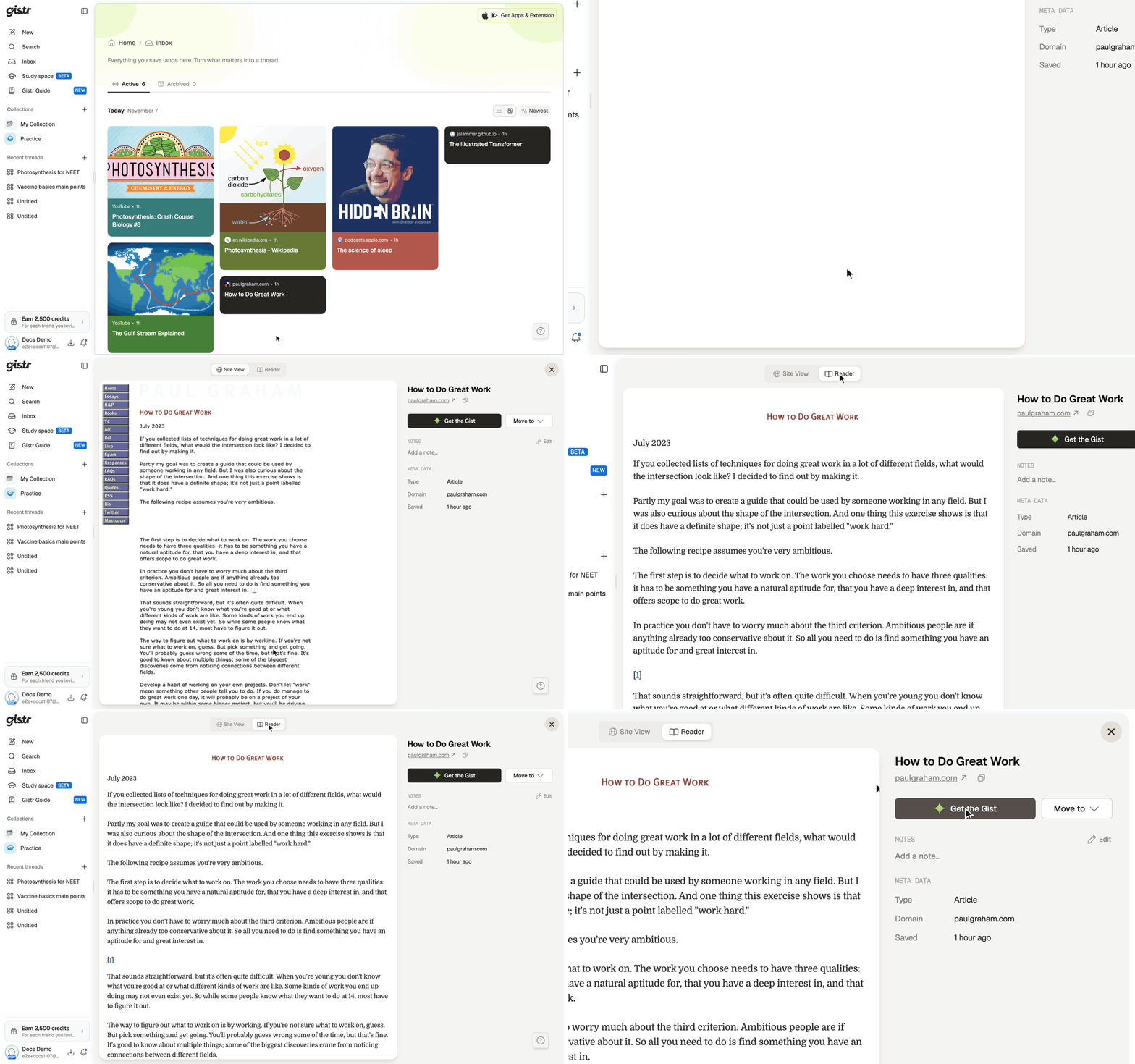
Switch an Inbox preview from Site View to Reader
Use an item
- Get the Gist: makes a new thread from the item and opens it.
- Move to, then Collection or Thread: adds it to the collection or thread you pick.
- Add from inbox in a thread’s message box: select +, then Add from inbox, and tick items under Select sources. See Add a source.
- Delete: removes it from the Inbox.
To confirm: importing a browser bookmarks file into the Inbox. The importer exists in the code but sits behind a feature switch, so it may not be on for every account.