
Add a block with /
Type / on a new line to open the menu, then pick an item or keep typing to filter it.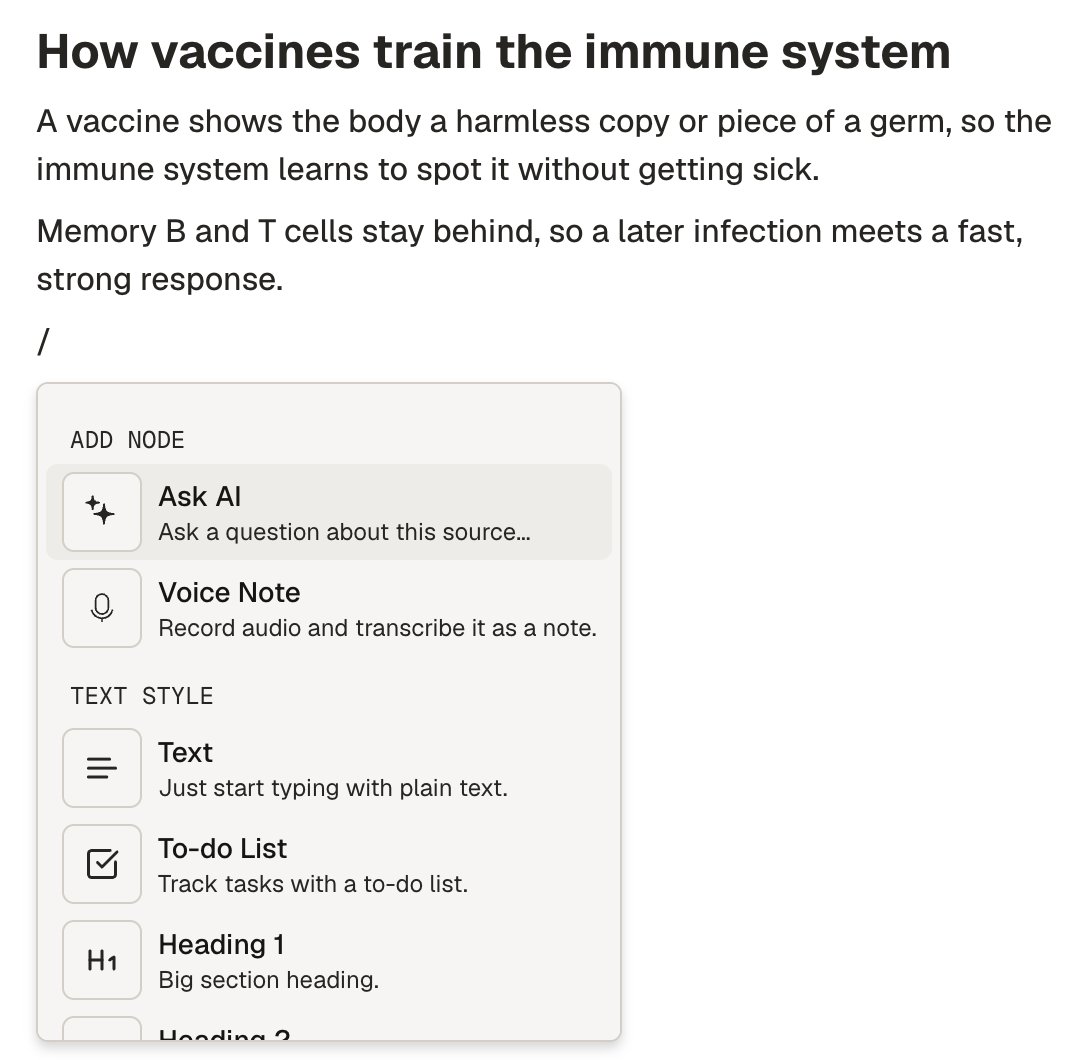
The / menu on a page
Format text
The Formatting bar has Undo and Redo, the block type, bold, italic, underline, strikethrough and code, a link, lists, colour, and Image. Select text first, then pick a format. To ask about some text, select it and select Ask.Move and change blocks
Hover a block to see its drag handle at the left. Drag it to move the block. Select the handle to open the block menu:- Turn into: change the block type, such as text into a heading.
- Ask AI: ask about the block. Shows when the block has text.
- Duplicate, Copy and Delete.
Maths and tables
The editor shows maths written in LaTeX and shows tables, for example in answers you save from the chat.To confirm: how a user types maths or inserts a table by hand, and whether pasting a YouTube or X link makes an embed. The editor loads maths, table and embed support, but the maths button and any “insert table” item are not in the current menus.