
Start a new set
You can start from three places:- In Study Space, select Create new, then Read, Flashcards or Quiz.
- In the chat composer, open the + menu and pick an item under Study.
- On an empty Study Space, pick a tile under or start with.
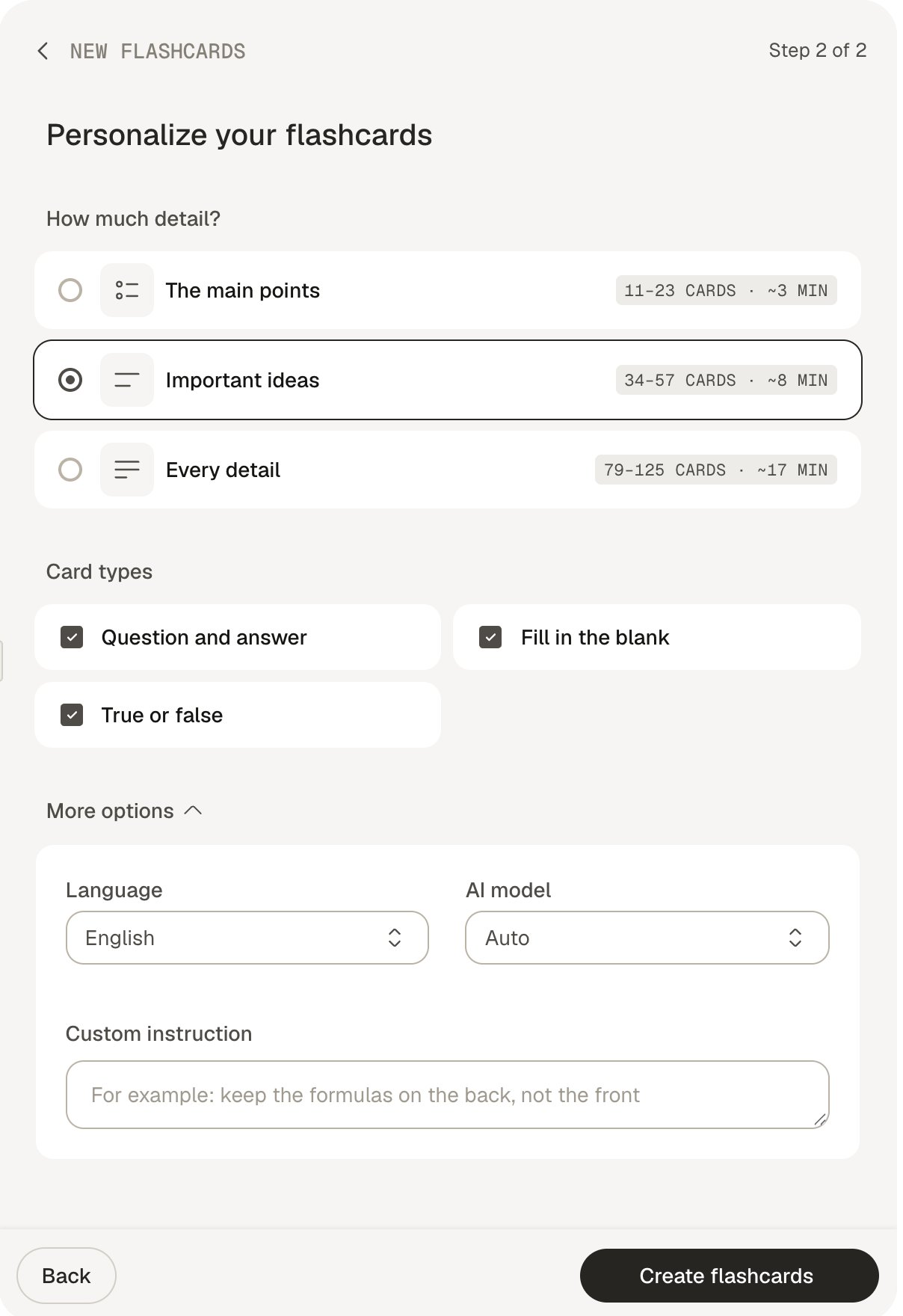
Personalise a flashcard set
1
Choose source and sections
Pick the source and tick the sections you want. Select Continue.
2
Personalize
Choose the detail level or difficulty, and the card or question types.
3
More options (optional)
Open More options to set Language, AI model and a Custom instruction.
4
Create
Select Create reading, Create flashcards or Create quiz. You can leave the screen while Gistr writes it.
Options for each kind
- Reading
- Flashcards
- Quiz
How much detail?
- Compact, just the key ideas
- Detailed, with explanations and examples (the default)
Language, model and your own instruction
- Language starts as your AI response language. Pick another to write this set in a different language.
- AI model starts on Auto, the free study model. Another model uses credits, and a locked model needs a plan upgrade. See Models in Gistr and How credits work.
- Custom instruction tells Gistr what to focus on. For example: “ask about the causes, not the dates”.