
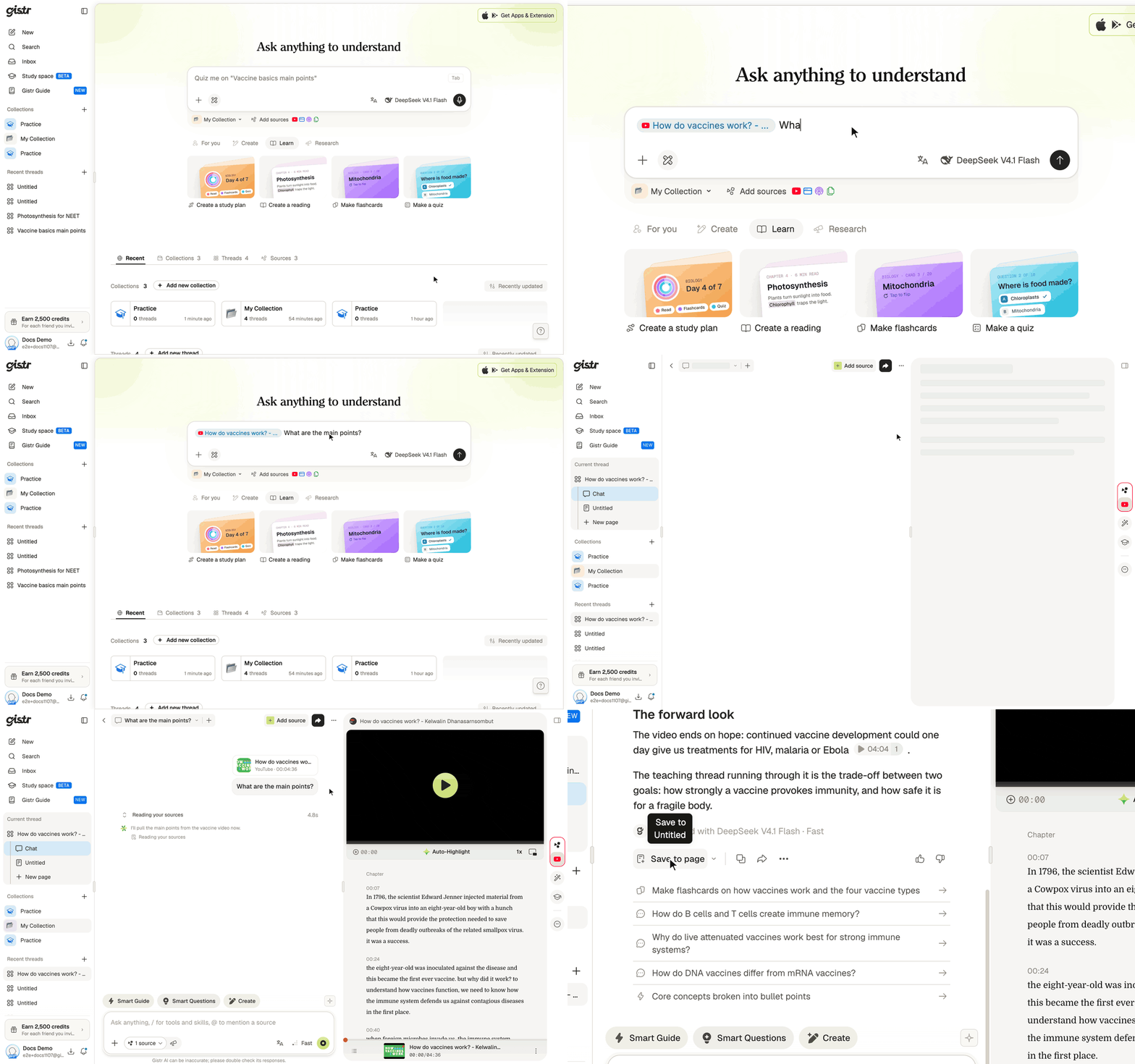
Paste a YouTube link on the home page to start a thread
1
Add a source
On the home page, paste a YouTube link into the box. You can type a question after the link, or leave it empty. Press Enter or select Ask. Gistr makes a thread, adds the video as a source and opens Chat.
2
Ask a question
In the chat, ask something like “What are the main points?”. Gistr AI answers from the video and adds citations. Select a citation to jump to that moment in the video.
3
Save a moment
In the transcript beside the player, select a few lines you want to hear again, then select Create Moment. The part is saved, and Play all moments plays your moments in order.
4
Write a note
Under an answer you like, select Save to page. The answer goes into your notes. Open Pages to see it, edit it or add your own words. To start an empty page, select New page.
5
Open Study Space
In the thread, select Study space. Make a study plan, a reading, flashcards or a quiz from the video.
What to read next
Ask anything from home
Start a thread from a question, links or files.
Chat and Pages
How a thread is laid out.
Videos and podcasts
Transcripts, moments and highlights.
What is Study Space?
Remember what you learn.