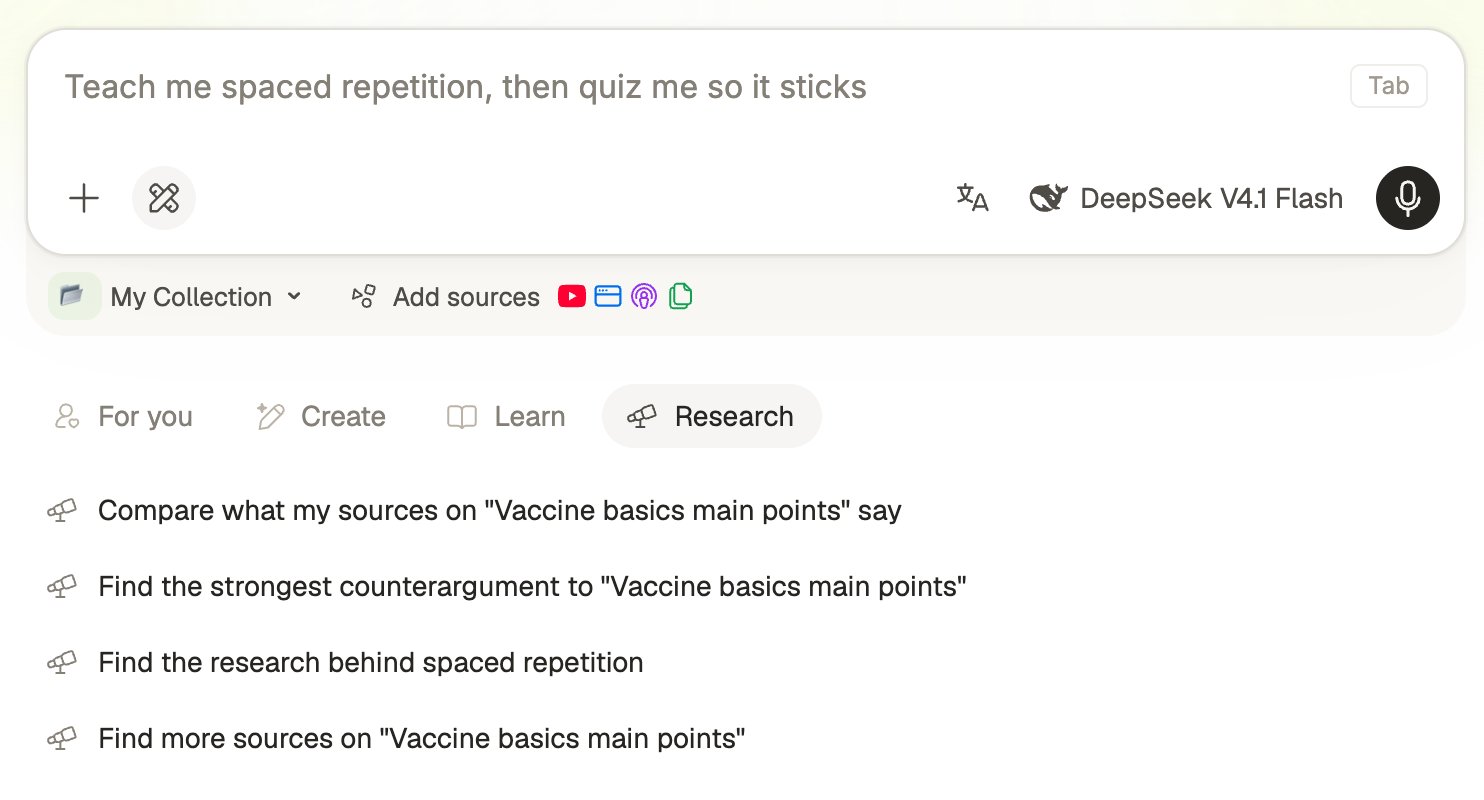
Under the home box there are prompt tabs: Create, Learn and Research, and sometimes For you. Pick an option and Gistr fills the box with a ready-made ask. Words in [square brackets] are blanks for you to replace, and the first blank is selected so you can type over it.
The prompt tabs under the Gistr home box, with the Research tab open and four personalised prompt rows.

The Research tab, with rows made from your threads

The tabs

Fill in the blanks

A prompt like Compare what experts say about [topic] lands in the box with [topic] selected. Type your topic, then press Enter. Some prompts end with a blank such as [paste a YouTube link]. Paste a link there and it becomes a source in the box.

Try with

When you pick an option on the Create or Learn tab, its tool goes into the box as a chip and the rows change to Try with followed by the tool’s name, for example Try with Presentation. These four rows are ideas for that tool.
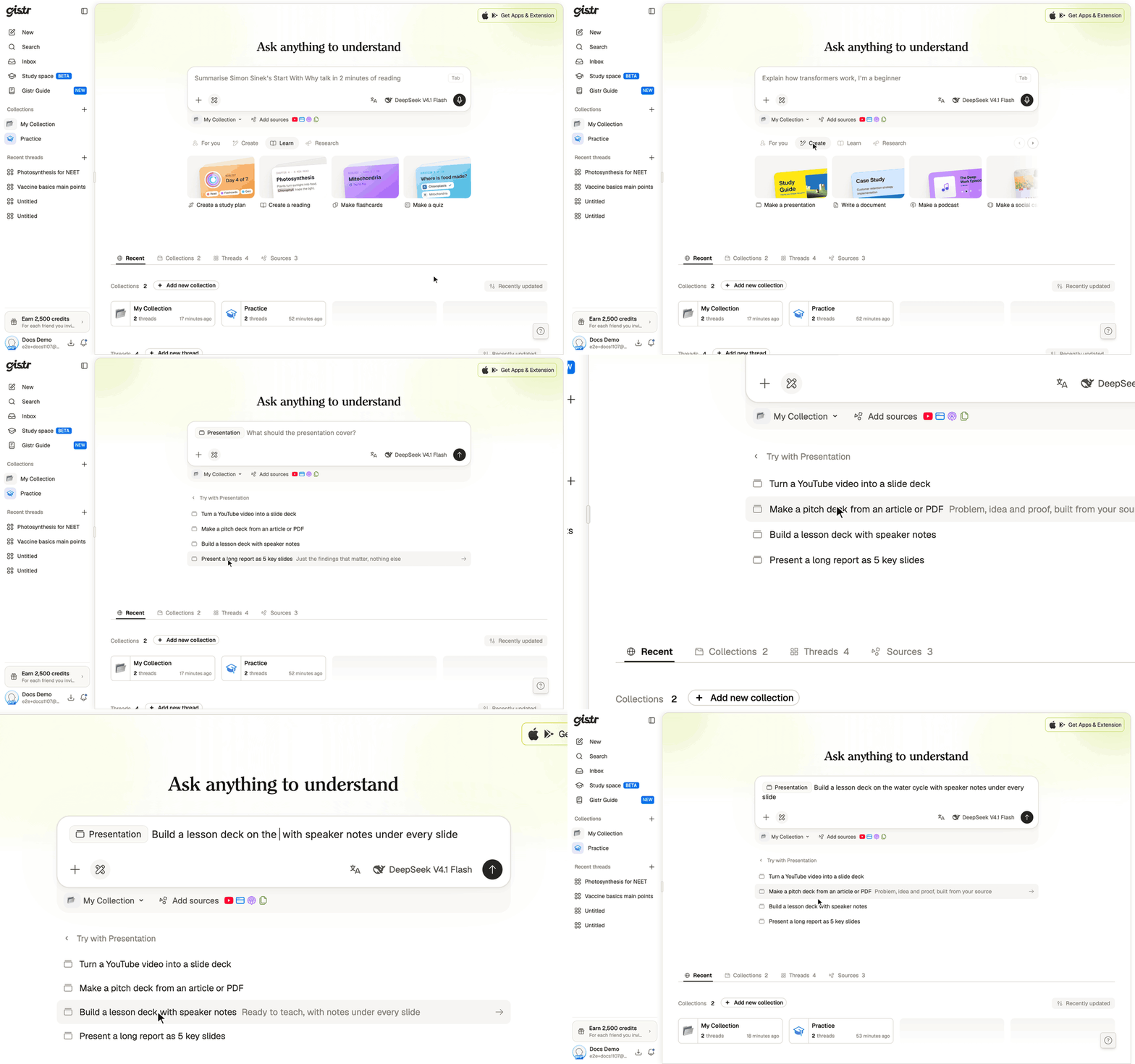
Picking Make a presentation shows Try with Presentation rows; picking one fills the box and the topic blank is replaced.

Picking Make a presentation shows Try with Presentation rows

The rows follow what is in the box:
  • With no sources, they work from a topic or a link you paste.
  • With sources in the box, they work on those sources, for example Make slides from this source.
Select the back arrow next to Try with to go back to the tab. This also takes the tool out of the box.

Not this

Rows made from your own library show Not this when you point at them. Select it to remove the row. Another one takes its place.

Where else you see these prompts

The same Learn, Research and Create groups appear in the + menu of the composer inside a thread. See The composer.

Try it

On the home page, open the Research tab, pick one of the rows, and press Enter.