Yes. A thread can hold many chats, and each one keeps its full history. Start a new chat when you change topic, so each chat stays focused. All chats in a thread use the same sources.

Start a new chat

At the top of the thread, next to the chat’s name, select + (New chat). The new chat opens empty with the message box ready. If the chat you are in is new and still empty, New chat is greyed out.

Find an earlier chat

Select the chat’s name at the top of the thread. A list opens with every chat in the thread, grouped by when you last used them: Today, Yesterday, Last 7 days, Last 30 days and Older. Type in Search chat history to find one by its words, then select it to open it.
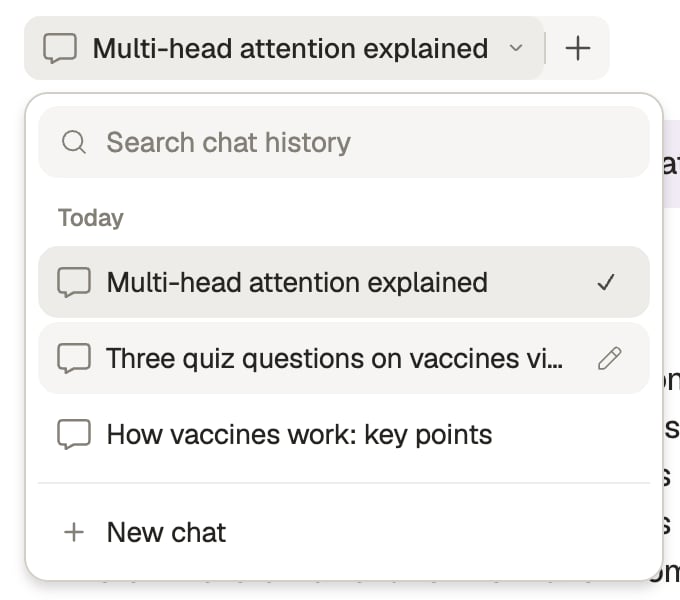
The list of chats in a Gistr thread, grouped by date, with a search box and New chat.

The chat list with search and New chat

Gistr gives each chat a title after its first answer. To change the name, hover a chat in the list and select Rename chat. Press Enter to save.

Chat while you write notes

On a computer, select Gistr chat in the rail to open a small chat window that floats over your notes. It shows the same chats as the Chat view. In its top bar you can start a New chat, rename it from More, Expand or Collapse the window, and Close it.

Save an answer to a page

Under an answer, select Save to page to put it in your notes. To pick which page, open the menu beside it under Save to, choose a page, or select New page to start one. In a narrow window the same button reads Add to note.

Try it

In a thread, ask one question, then select New chat, ask a different one, and open the chat name at the top to switch back to the first chat.