
Listen to an answer
- In the chat
- On a page
Under an answer, open More options, then select Read aloud. Select Stop reading in the same menu to stop.
Choose the voice
Open Settings, then Preferences, and find Voice: “Used for read-aloud and other audio across Gistr.” Pick one of six voices: Sarah, George, Alice, Brian, Jessica or Charlie. Select Preview voice to hear it first.Record a voice note
1
Start recording
On a page, select Voice note under the page title, or type / and pick Voice Note. A recorder block appears. Select Start recording, and allow the microphone if your browser asks.
2
Speak
You can pause and resume. A recording can be up to 3 minutes long.
3
Stop
Select Stop recording. Gistr writes the text of your recording into the note and keeps the audio with it, so you can play it back or select Download Audio.
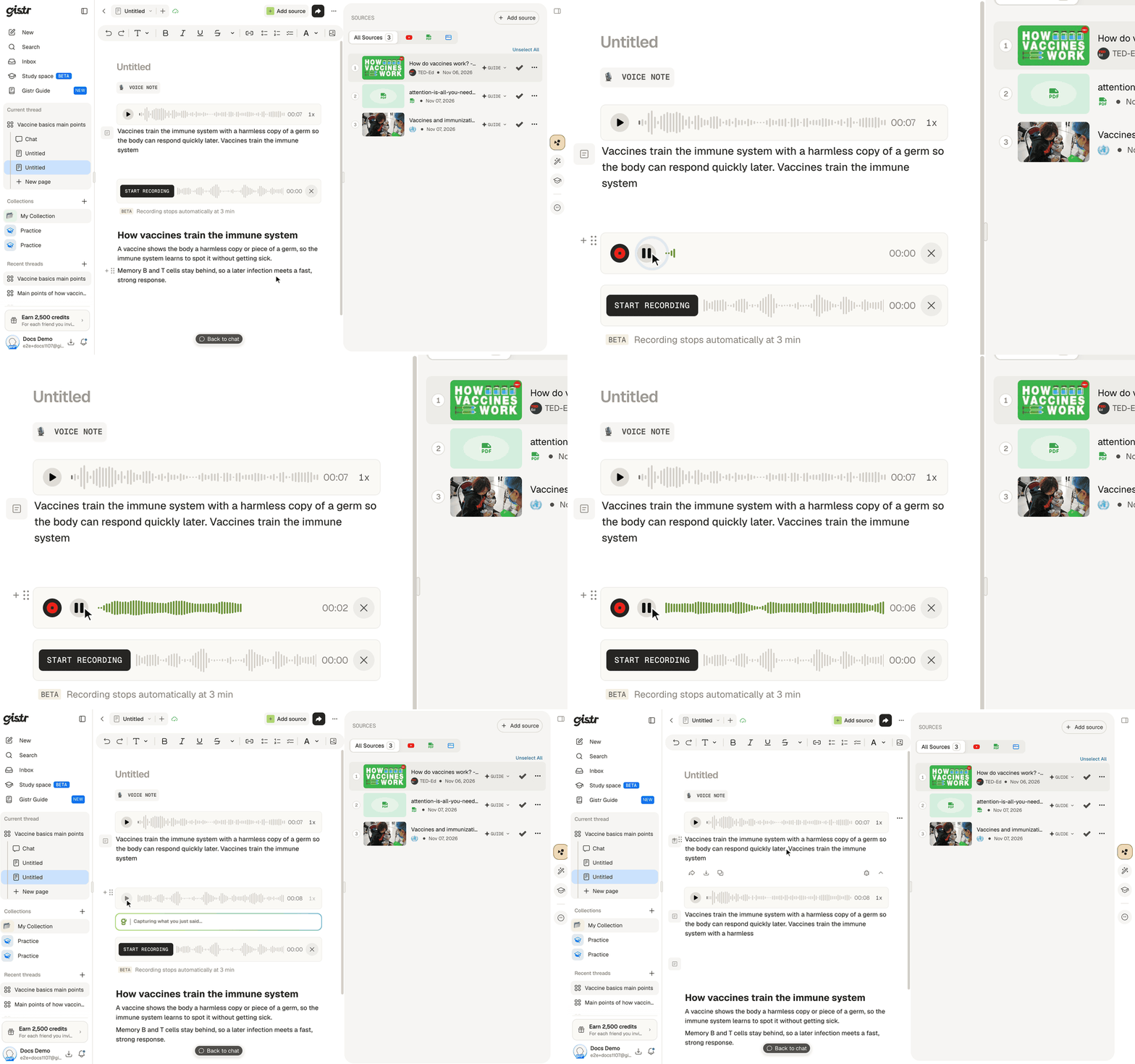
Record a voice note and get it as text